Minecraft Image
Converter
Turn any picture or photo into Minecraft blocks with this free Minecraft pixel art generator — the latest 26.2 palette, a full material list, and survival-friendly options. Your image never leaves your browser.
Free · no signup · no watermark on exports · works on desktop and mobile
A real conversion, not a mockup
256 blocks wide, 26.2 palette, Floyd–Steinberg dithering — 43,776 blocks, straight out of this generator with no manual touch-ups.
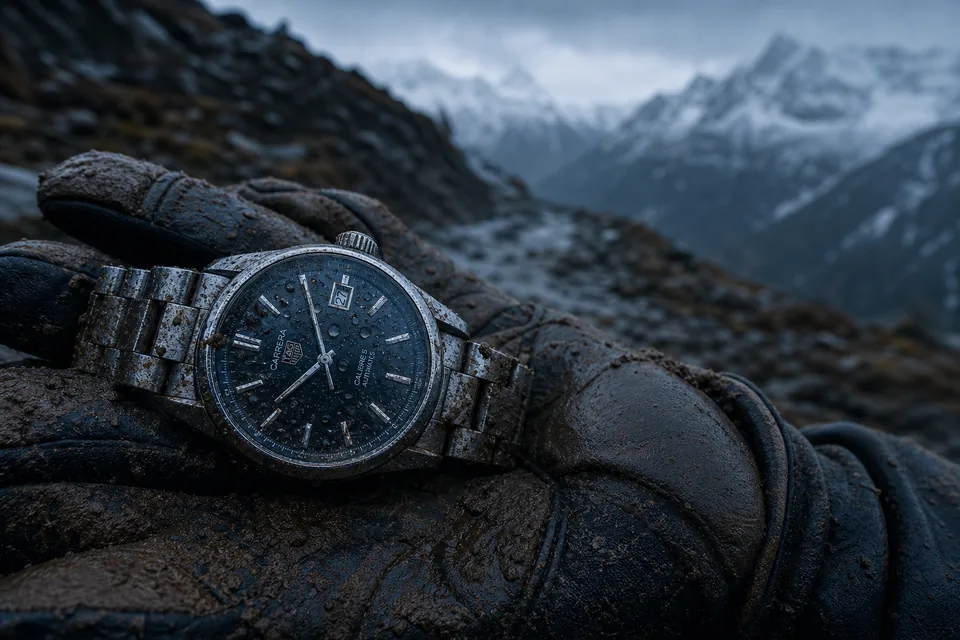
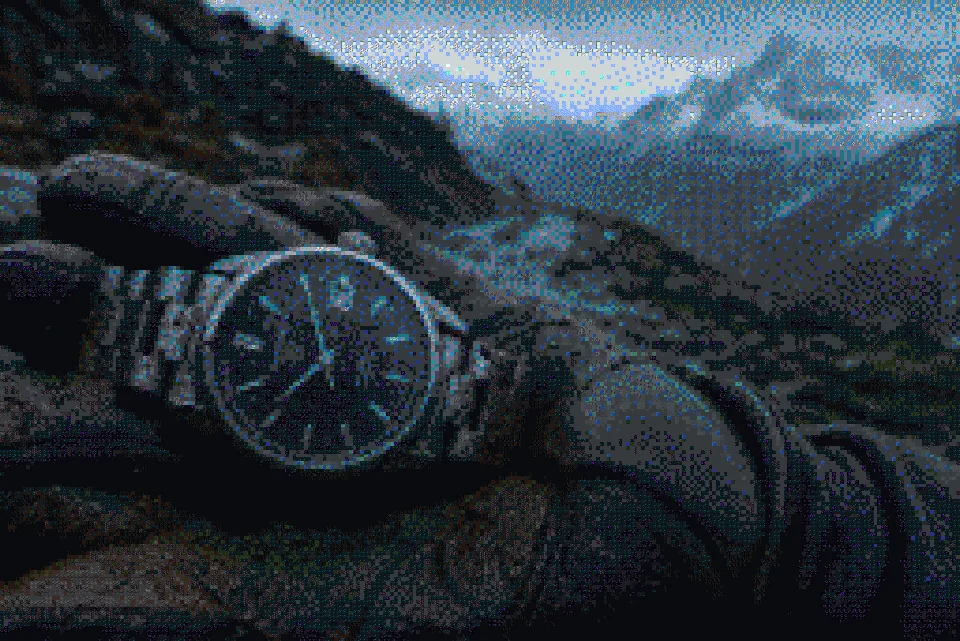
How does this Minecraft pixel art generator work?
- Step 1
Upload
Drop in any photo — JPG, PNG, WebP, GIF. Processed locally, nothing is uploaded to a server.
- Step 2
Tune
Pick block width, game version, edition and dithering mode. The preview updates live.
- Step 3
Export
Download PNG with a material list, or export .schem / .litematic and paste it into your world.
What makes this different from other converters?
| Feature | MC Pixel Art | Typical converters |
|---|---|---|
| Block palette | Versioned 1.13–26.2, updated within days of a new release | Stopped updating around 1.16 — no cherry wood, resin or the 26.2 sulfur family |
| Color matching | OKLab perceptual color space | Raw RGB comparison — visibly wrong blocks in dark and skin-tone areas |
| Dithering | Three modes: Floyd–Steinberg, ordered, or off — switch live | Usually one fixed method, or none at all |
| Material list | Exact count per block, pre-divided into stacks of 64 | Often missing, or just a single total block count |
| In-game export | .schem (WorldEdit) and .litematic (Litematica) | PNG only — no paste-ready file |
| Survival mode | Toggle limits the plan to farmable/mineable blocks, excludes falling blocks | No survival filter — plan may call for unobtainable blocks |
| Preview | 2D and 3D — see it before you build | Usually a flat PNG grid only |
| Build orientation | Wall or floor — pick how you’re placing it | Wall-only, or not configurable |
| Build guidance | Step-by-step playback in build order | No build guidance — figure it out yourself |
Built to get you in game, not just to a download
Most Minecraft pixel art generators stop at a picture of blocks. This one is built for what happens after: check the design in 2D or 3D before you commit, get an exact shopping list before you start farming, then either paste the whole thing in one shot with a schematic export or step through it block by block with the built-in playback.
Playing Bedrock? Switch the edition toggle and the palette drops Java-only blocks, so the PNG and block list you build from are actually placeable in your world. And because the palette is data-driven, new game versions are supported within days of release — pick the latest option and the plan uses today’s blocks, not a 2020-era palette.
FAQ
- How do I turn a photo into Minecraft pixel art?
- Upload the photo above, choose a width in blocks (256 is a good start), and the generator maps every pixel to the closest matching Minecraft block. You get a preview, a downloadable PNG and a material list.
- Can I convert a picture into Minecraft blocks?
- Yes — this works as a picture to Minecraft converter just as much as an image one; the words mean the same thing here. Upload a JPG, PNG, WebP, GIF or BMP and it converts the same way.
- Does it support the newest 26.2 blocks?
- Yes. The block palette is versioned — pick your game version and only blocks that exist in that version are used. That includes 26.2 additions like sulfur and cinnabar.
- How does the block color matching work?
- Each pixel is converted to the OKLab perceptual color space and matched against every block in your selected palette; the block with the smallest perceptual difference wins. OKLab models human vision, so matches look right instead of just being numerically close in RGB.
- Can I export a schematic for WorldEdit or Litematica?
- Yes — download the result as .schem (WorldEdit) or .litematic (Litematica) and paste it straight into your world. See how to import an image into Minecraft for import instructions.
- Does it work for Bedrock edition?
- Yes — switch the edition toggle to Bedrock and the palette only uses blocks available there. Note that .schem/.litematic exports are Java mod formats; on Bedrock, build from the PNG and block list.
- What image formats can I upload?
- Anything your browser can decode: JPG, PNG, WebP, GIF (first frame), BMP and more. There is no file size limit — large photos are downscaled to your chosen block width before matching.
- What kind of pictures convert best?
- High-contrast images with a clear subject convert best. Faces and detailed photos need at least 128 blocks of width; logos and cartoon art stay readable at 64. Busy backgrounds turn into noise at small sizes — crop to the subject first.
- Is my image uploaded to a server?
- No. The entire conversion runs in your browser using a local Web Worker — the image never leaves your device, which also means the tool keeps working offline.
- Does it work in survival mode?
- Yes — keep the survival-obtainable filter on and the plan only uses blocks you can farm or mine. The material list counts every block in stacks of 64 so you can gather before building.
From the guides
- How Do I Turn a Photo Into Minecraft?
Step-by-step: turn any photo into Minecraft pixel art — pick the right size, dithering and block palette, then build it from the material list.
- How Do I Import an Image Into Minecraft?
Three ways to get an image into your Minecraft world: paste a .schem with WorldEdit, place it with Litematica, or build by hand from a material list.
- How to Create a Picture in Minecraft
How to build a picture in Minecraft survival or creative: plan the size, choose blocks by color, and place it layer by layer without guesswork.
- How to Turn 3D Models Into Minecraft Builds
What actually works for converting 3D models to Minecraft — voxelizers for true 3D meshes, and image-to-schematic tools for murals of your renders.